
Entourage responding too slow
Too many mails in your inbox.
How it impacts: Every time when send & receive runs on your machine, it takes time to sync depending on number of mails on the exchange server.
Fix: You need to move mails from your exchange/POP/IMAP account to your computer folder.
Process: In order to fix this follow the following steps:
a. Launch Entourage.
b. Select the mails that you want to move from exchange to your computer. You can use command key to select multiple items.
c. Now drag those folders to "On My Computer" folder in Entourage.
d. If you want to add sub folders under "On My Computer", just use contextual menu on this folder.
Just like the mails you can also copy the whole inbox in "On My Computer" folder.
Please Note: Once you move those mails from your inbox, it is moved from the server so you will not be able to check those mails from anywhere else, i.e. from any other machine.
Other useful steps could be Archiving the mails to Macintosh HD or any other storage device or you can also create rules to delete certain certain items from the inbox automatically.
Showing posts with label Entourage. Show all posts
Showing posts with label Entourage. Show all posts
Friday, May 15, 2009

STOP OUTGOING MAILS AFTER REBUILD
After Rebuild Entourage starts resending old mails
Working at a help desk we use to get this issue that sometimes after rebuilding database Entourage starts sending old mails (upto one year old) to the users added in the contact list.
Though it took really long time but finally we reached to the conclusion, "The reason is not that rebuild is unsuccessful but it is due to the duplicate identity that is created while creating the database." This duplicate identity is selected in the place of main identity in Entourage and all you need to do is just change it to the default original identity what it should be and it will stop sending the mails.
Source
Working at a help desk we use to get this issue that sometimes after rebuilding database Entourage starts sending old mails (upto one year old) to the users added in the contact list.
Though it took really long time but finally we reached to the conclusion, "The reason is not that rebuild is unsuccessful but it is due to the duplicate identity that is created while creating the database." This duplicate identity is selected in the place of main identity in Entourage and all you need to do is just change it to the default original identity what it should be and it will stop sending the mails.
Source
ENTOURAGE TROUBESHOOTING: COMPOSING MAIL
Partial mail vanishes while composing
This seems to be, though it is actually not a problem.
MS office has enabled Entourage with a feature that allows the user to highlight a portion of the original message and then when you forward or reply, it only brings that part that's highlighted into the new message. In order to fix this all you have to do is don't highlight anything in the original message and it will all appear in the new message or otherwise if you want, you can use this feature here onwards.
Source
This seems to be, though it is actually not a problem.
MS office has enabled Entourage with a feature that allows the user to highlight a portion of the original message and then when you forward or reply, it only brings that part that's highlighted into the new message. In order to fix this all you have to do is don't highlight anything in the original message and it will all appear in the new message or otherwise if you want, you can use this feature here onwards.
Source
BASIC ENTOURAGE TROUBLESHOOTING
The very Basic Entourage troubleshooting.
1. The very first thing you need to make sure of, is you need to be updated. Not just OS X but also your MS Office suite. Most of the problems are solved by simply keeping the machine updated. Make sure you are using the latest versions for the OS and Microsoft Office.
2. Sometimes just a normal rebooting of your Mac is required. This often fixes many problems.
3. Running Repair Permissions is another standard tool used to repair problems, but it is more effective with the inbuilt OS X applications.
4. The very first recommended step is to delete cache files which is effective many times.
5. Finally you have the option to delete the plist i.e. deleting the preferences files. Doing this the application changes all the settings to default hence solving the issue if it was due to any changes made.
1. The very first thing you need to make sure of, is you need to be updated. Not just OS X but also your MS Office suite. Most of the problems are solved by simply keeping the machine updated. Make sure you are using the latest versions for the OS and Microsoft Office.
2. Sometimes just a normal rebooting of your Mac is required. This often fixes many problems.
3. Running Repair Permissions is another standard tool used to repair problems, but it is more effective with the inbuilt OS X applications.
4. The very first recommended step is to delete cache files which is effective many times.
5. Finally you have the option to delete the plist i.e. deleting the preferences files. Doing this the application changes all the settings to default hence solving the issue if it was due to any changes made.
REMOVING A DELEGATE
How to remove a delegate from Entourage?
1. Launch Entourage and on the Tools menu, click on Accounts and select the Mail tab.
2. Open the Microsoft Exchange account that you want to delete/remove a delegate from.
3. Come on Delegate tab, in My Delegates, select the delegate that you want to remove, and then click Remove.
It was really simple, isn't it?
1. Launch Entourage and on the Tools menu, click on Accounts and select the Mail tab.
2. Open the Microsoft Exchange account that you want to delete/remove a delegate from.
3. Come on Delegate tab, in My Delegates, select the delegate that you want to remove, and then click Remove.
It was really simple, isn't it?
ENTOURAGE TROUBESHOOTING: HOW TO ADD A DELEGATE
Adding a Delegate (Only for Exchange users)
1. Launch Entourage go to Tools and then Accounts.
2. Open the account that you want to create the delegate for, then select the Delegate tab.
3. Go to My Delegates and select Add.
4. Type the name of the user whom you want to give access to, and try to resolve the name by clicking Find.
5. Select the user and click OK.
6. Now define the permission levels that you want to give to that delegate from Calender, Address book and Inbox.
Note: Before you give access to anyone the user has to add you under Users I am Delegate for.
1. Launch Entourage go to Tools and then Accounts.
2. Open the account that you want to create the delegate for, then select the Delegate tab.
3. Go to My Delegates and select Add.
4. Type the name of the user whom you want to give access to, and try to resolve the name by clicking Find.
5. Select the user and click OK.
6. Now define the permission levels that you want to give to that delegate from Calender, Address book and Inbox.
Note: Before you give access to anyone the user has to add you under Users I am Delegate for.
Friday, April 24, 2009
ENTOURAGE WITHOUT VPN
Check Your Exchange Mail Without VPN access in Entourage 2004
The most dynamic feature built in Entourage 2004 is providing you the ability to check your corporate Email being out of office, on your Mac and all this can be done without even firing up a VPN connection to connect your office network. Now you can configure Entourage to check being at your home or at any wi-fi netwok, just follow the following steps:
1. Launch your browser & log into your organization's Outlook Web Access website.
2. From the web address feild, copy all the matter till the first slash, including it. (just to explain, if the web address is http://mailexchange.com/laeeq, copy http://mailexchange.com/)
3. Now launch the Entourage and go to Tools and select Account Settings.
4. Open the settings and paste the copied website address in the Server field.
5. Once done, you hould be able to send & recieving mails without using VPN.
If you want to access public folders from home, go to the Public Folders link in Outlook Web Access and copy-paste the first part of the URL (e.g. http://www.example.com/public) into the Public Folder server field on your Exchange account's Advanced tab in your Entourage. Source
The most dynamic feature built in Entourage 2004 is providing you the ability to check your corporate Email being out of office, on your Mac and all this can be done without even firing up a VPN connection to connect your office network. Now you can configure Entourage to check being at your home or at any wi-fi netwok, just follow the following steps:
1. Launch your browser & log into your organization's Outlook Web Access website.
2. From the web address feild, copy all the matter till the first slash, including it. (just to explain, if the web address is http://mailexchange.com/laeeq, copy http://mailexchange.com/)
3. Now launch the Entourage and go to Tools and select Account Settings.
4. Open the settings and paste the copied website address in the Server field.
5. Once done, you hould be able to send & recieving mails without using VPN.
If you want to access public folders from home, go to the Public Folders link in Outlook Web Access and copy-paste the first part of the URL (e.g. http://www.example.com/public) into the Public Folder server field on your Exchange account's Advanced tab in your Entourage. Source
RECOVER DELETED ITEMS
How to recover deleted items in Entourage
This option of recover deleted items is used when you delete the items even from your deleted items and you require that particular mail after that.
Unfortunalely we can not retrieve mails from Entourage id we have deleted it once, but for the Exchange accounts there is a work around.
This option of recover deleted items is used when you delete the items even from your deleted items and you require that particular mail after that.
Unfortunalely we can not retrieve mails from Entourage id we have deleted it once, but for the Exchange accounts there is a work around.
- Login to your webmail and go to Options.
- Now select Deleted items. A new box will come up with the options to Recover Deleted Items and Remove or Delete Permanently.
- Now here it comes- you will find all the mails that you have deleted in last 30 days.
- Select the mails those you want to be recovered and it will go to the folder where it was deleted from. Source


SYNCING ADDRESS BOOK WITH MAIL
Unable to Sync Address Book with Entourage
If in case you are unable to resolve the addresses even though it is saved it in your Address Book application in Entourage.
Here are few steps that needs to be performed in order to fix this.
Source
If in case you are unable to resolve the addresses even though it is saved it in your Address Book application in Entourage.
Here are few steps that needs to be performed in order to fix this.
- Launch Entourage & o to Preferences.
- Under General Preferences, select Sync Services.
- Put a check on Synchronize contact with Address Book and .Mac
Source
EXPORTING CONTACTS TO YAHOO
How to export contact list to Yahoo mail
1. Go to 'File' menu in Entourage and select Export contacts.
2. Export the contacts as text file and then open this file in Excel.
3. Select 'Save As' from file menu and save it in .csv format.
4. Now open your Yahoo mail account and go to Addresses.
5. Click on 'Import Your Contact from other Application'.
6. From the dialogue box locate the file that you have saved and click on 'Import Now'.
Source
1. Go to 'File' menu in Entourage and select Export contacts.
2. Export the contacts as text file and then open this file in Excel.
3. Select 'Save As' from file menu and save it in .csv format.
4. Now open your Yahoo mail account and go to Addresses.
5. Click on 'Import Your Contact from other Application'.
6. From the dialogue box locate the file that you have saved and click on 'Import Now'.
Source
TEXTLESS MAILS?
When there is no text in the Mail
If it happens that you opened a mail and you are sure that there should be some text written there but all you can see is a blank screen.
I am mentioning two reasons, either should work:
(A) Launch Entourage and go to Preferences.
(B) Come on General Tab and under Security put a check on "Display complex HTML in messages".
Hopefully this should fix this issue. Otherwise:
Your internet preferences file could be correpted, to fix this, try following steps:
(A) Go to HD and select the ID of the user.
(B) Enter its Library and open Preferences.
(C) Drag the plist file (com.apple.internetconfig.plist) on the desktop.
(D) Now launch Entourage and this should fix the issue. If it is fixed then you can delete the plist file.
Source
If it happens that you opened a mail and you are sure that there should be some text written there but all you can see is a blank screen.
I am mentioning two reasons, either should work:
(A) Launch Entourage and go to Preferences.
(B) Come on General Tab and under Security put a check on "Display complex HTML in messages".
Hopefully this should fix this issue. Otherwise:
Your internet preferences file could be correpted, to fix this, try following steps:
(A) Go to HD and select the ID of the user.
(B) Enter its Library and open Preferences.
(C) Drag the plist file (com.apple.internetconfig.plist) on the desktop.
(D) Now launch Entourage and this should fix the issue. If it is fixed then you can delete the plist file.
Source
HI-END ARCHIVING
Archiving through Entourage Email Archive X 4.1.0
If you are looking for high end archiving to transfer the mails to the machine so that you can search them using spotlight to locate the file/mail. Technically addressed as EEAX, this has fuction of archiving the file in many diffferent formats and is completely Unicode compliant. You can download this script from here.
Source
If you are looking for high end archiving to transfer the mails to the machine so that you can search them using spotlight to locate the file/mail. Technically addressed as EEAX, this has fuction of archiving the file in many diffferent formats and is completely Unicode compliant. You can download this script from here.
Source
AUTO LAUNCH ENTOURAGE
Set up Entourage to launch automatically when you login
If Entourage is an essential application for you and you use it as an important tool for your business, then this post could be of great help for you. I am mentioning the setup procedure to launch Entourge at the time of login.
1. Go to "System Preferences".
2. Select "Accounts".
3. In Accounts window, select you name.
4. Open the "Login Items" and add click on "+" icon.
5. Browse and add Entourage as its default location is in Applications > Microsoft Office 2004 (or 2008) > Entourage.
6. Once you add the application, come out of Accounts window and re-login to the machine to check if it is working fine.
I suggest new users a simple way i.e. just launch Entourage and then hold the icon on the dock, you will get an option of Open at Login, just select it and it is done.
If Entourage is an essential application for you and you use it as an important tool for your business, then this post could be of great help for you. I am mentioning the setup procedure to launch Entourge at the time of login.
1. Go to "System Preferences".
2. Select "Accounts".
3. In Accounts window, select you name.
4. Open the "Login Items" and add click on "+" icon.
5. Browse and add Entourage as its default location is in Applications > Microsoft Office 2004 (or 2008) > Entourage.
6. Once you add the application, come out of Accounts window and re-login to the machine to check if it is working fine.
I suggest new users a simple way i.e. just launch Entourage and then hold the icon on the dock, you will get an option of Open at Login, just select it and it is done.
PUT A DATE & TIME STAMP
Insert quick date and time stamp at the top of your notes.
Go to Notes in Entourage on the toolbar at the right end there is an icon that represents the date and time, once you select this icon, you will get instant date & time inserted on your notes.
Go to Notes in Entourage on the toolbar at the right end there is an icon that represents the date and time, once you select this icon, you will get instant date & time inserted on your notes.

ARCHIVING MAILS THROUGH MBOX
Archiving (exporting) Mails using MBOX
- Archive mails using MBOX functionOpen Entourage.
- Select the folder that needs to be exported.
- Now move this folder to the desktop.
- A new file will be created in the name of the folder.
Archiving (importing) Mails using MBOX
- Double click on the exported file on the desktop.
- Click IMPORT on import confirmation dialogue box.
- Entourage if, is ON or OFF in both the cases you will get an prompt of import dialogue box.
Thursday, April 9, 2009
PREVENT THE CRASH
Entourage Crashing and closing automatically
Sometimes it might happen that as soon as you launch Entourages it closes down and not allows you to work. This might happen due to permissions and can be fixed by repairing disk permissions. Here is the process to repair it:
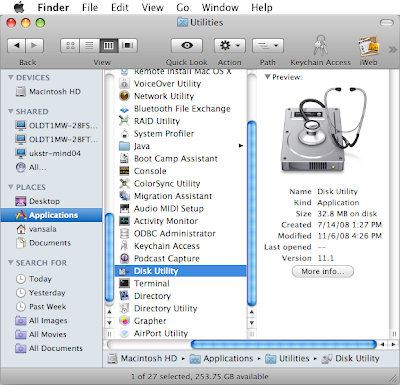
1. Go to Applications & launch Utilities.
2. Under Utilities, open Disk Utility.
3. On this screen, there is list of the Drives attached to the machine.
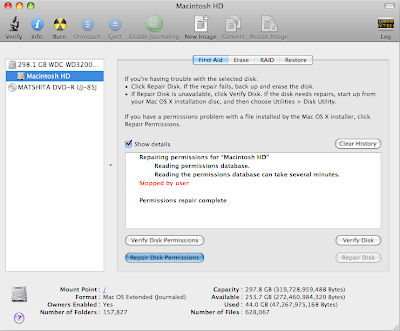
4. Select the hard drive in which application is installed and click on Verify Disk Permissions.
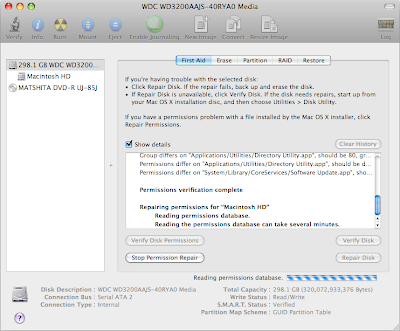
5. Once done, click on Repair Disk Pemissions and this process might take a while so gulp a coke while it finishes.
Once this process is complete restart the machine and then try to launch Entourage and it should work fine.
.
Sometimes it might happen that as soon as you launch Entourages it closes down and not allows you to work. This might happen due to permissions and can be fixed by repairing disk permissions. Here is the process to repair it:

1. Go to Applications & launch Utilities.
2. Under Utilities, open Disk Utility.
3. On this screen, there is list of the Drives attached to the machine.

4. Select the hard drive in which application is installed and click on Verify Disk Permissions.

5. Once done, click on Repair Disk Pemissions and this process might take a while so gulp a coke while it finishes.
Once this process is complete restart the machine and then try to launch Entourage and it should work fine.
.
Wednesday, April 8, 2009
SIMPLIFY THE RULES
Here are some Tips to make help you set up your rules easily.
1. Rather than using individual addresses, use categories while setting up rules.2. It is preferred to have all the criteria set up in one rule, rather than doing them in separate rules.3. Whenever you select "All Rules" it activates the MLM and Junk Mail Filter.4. Actions which Move messages or run AppleScripts cannot be followed by other rules (unless the move message command is issued by the Mailing List Manager).This does not apply to Entourage 2004. But you can put some of the same actions into the same rule.5. You can always set the priority of the rules, the one which is in higher position runs first, then comes the bottom ones.
1. Rather than using individual addresses, use categories while setting up rules.2. It is preferred to have all the criteria set up in one rule, rather than doing them in separate rules.3. Whenever you select "All Rules" it activates the MLM and Junk Mail Filter.4. Actions which Move messages or run AppleScripts cannot be followed by other rules (unless the move message command is issued by the Mailing List Manager).This does not apply to Entourage 2004. But you can put some of the same actions into the same rule.5. You can always set the priority of the rules, the one which is in higher position runs first, then comes the bottom ones.
Tuesday, March 31, 2009
MANAGING YOUR MAILING LISTS
How to set up Mailing List Manager?
Before we move ahead lets be clear about what a mailing list is all about? These are groups over the net that you join and they send mails to you, generally they come in bulk so it is a wise idea to create a seperate folder for this so that your inbox is never over limit. It is recommended to subscribe to a mailing list as it is a good source of information and knowledge. Here is an example of a mailing list and its subscription.
Under mailing list manager rules, there is an option selecting which you can run more rules under one MLM (Mailing List Manager).
Process to setup MLM:
1. Launch Entourage and select a mail that you have received from the mailing list.
2. Go to 'Tools' from the menu bar and select 'New'.
3. MLM is smart enough to fill up most of the feilds by itself, but make sure from your end that the the feilds entered is according to your preference.
4. Now it will allow you to add new folder to transfer mails coming from this list. Create a new folder with the name that you can recognize easily. (if you have subscribed to many mailing list then create a main folder in the root and put subfolders in it with the name of mailing lists).
5. All the new mails from this list will now come directly to this folder.
6. If you want existing mails to be moved to the defined folder then select all the mails in the inbox and right click (or hold ctrl key with the click) and select 'Apply Rules' and 'All Rules'. This option will help you to move all the old mails sitting in the inbox to the selected folder.
This way without selecting the mails seperately you can transfer them to the desired folder.
.
Before we move ahead lets be clear about what a mailing list is all about? These are groups over the net that you join and they send mails to you, generally they come in bulk so it is a wise idea to create a seperate folder for this so that your inbox is never over limit. It is recommended to subscribe to a mailing list as it is a good source of information and knowledge. Here is an example of a mailing list and its subscription.
Under mailing list manager rules, there is an option selecting which you can run more rules under one MLM (Mailing List Manager).
Process to setup MLM:
1. Launch Entourage and select a mail that you have received from the mailing list.
2. Go to 'Tools' from the menu bar and select 'New'.
3. MLM is smart enough to fill up most of the feilds by itself, but make sure from your end that the the feilds entered is according to your preference.
4. Now it will allow you to add new folder to transfer mails coming from this list. Create a new folder with the name that you can recognize easily. (if you have subscribed to many mailing list then create a main folder in the root and put subfolders in it with the name of mailing lists).
5. All the new mails from this list will now come directly to this folder.
6. If you want existing mails to be moved to the defined folder then select all the mails in the inbox and right click (or hold ctrl key with the click) and select 'Apply Rules' and 'All Rules'. This option will help you to move all the old mails sitting in the inbox to the selected folder.
This way without selecting the mails seperately you can transfer them to the desired folder.
.
SIGN YOUR MAILS
Adding Signature in Entourage
- Launch Entourage.
- Click on Tools menu and go to Signature.
- On this window click on New & enter the signature of your choice and give a name to your sign.
- Once done, click on close button on top left and it will prompt you to save the sign that you have created.
Setting a default Signature in Entourage
- Launch Entourage.
- Open Entourage menu and go to Account Settings.
- On this new window go to Options tab.
- Under Default Signature select the name of the sign that you want to be set as default and click on OK.
Changing a Signature temporarily
- This can be done from the New mail window itself from where you compose a new mail.
- Click on the pen icon that denotes signature and it will open a drop down displaying all the signs that you might have created.
- Select the appropriate on and continue composing your mail. It will have the new sign.
ENTOURAGE - The Most alluring mail client.
Creating a New Account in Entourage
Creating a new account in Entourage is simple than any other Email client that you have ever worked on. Here are the steps that you need to follow in order to set up a New POP account.
Creating a new account in Entourage is simple than any other Email client that you have ever worked on. Here are the steps that you need to follow in order to set up a New POP account.
- Launch Entourage, click on the Entourage menu (on the very top) then slect Account Settings.
- On this new Accounts window, click on drop down menu next to New and select Mail POP.
- Now hit the button Configure account manually.
- On this edit window enter the details i.e. in the Account name enter a name for this account to identify which Email is configured under this account.
- In the Name field enter the name that you want to be displayed when someone receives your mail (John Smith, JS Inc.)
- Enter your complete Email address in the E-Mail address box (e.g. john_smith@bigbird.net)
- Under the Account ID box enter first part of your email address (e.g. john_smith)
In the POP server, enter the POP server name that your administrator might have given you (it should be like pop.bigbird.net). - Now in the password field enter you password for your email address.
- For future convenience Save the password in my Mac OS keychain.
- In the SMTP server field enter smtp server name from administrator (like smtp.bigbird.net)
- Select the Click here for advanced sending options button.
- Put a check on "SMTP server requires authentication" box and close by clicking on the small square on top left. Click OK.
Subscribe to:
Posts (Atom)


 Posts
Posts


